Timeline Maker
An editable timeline from your dated events
What it does
- Draws a timeline from events you type, or from lines you paste such as 1969 - Moon landing
- Reads dates as years, full dates and month and year, and puts the events in order
- Keeps labels from overlapping, and tells you to pick another layout or fewer events when they do not fit on a page
- Adds the timeline to your design as a picture of the line and markers, with each date and title as text you can edit and restyle in Canva
- Fits the timeline to the page you are on
- Pro: more layouts, styles and date formats, real time spacing with era bands, event icons, BC and AD dates, pasting from a spreadsheet and long timelines continued over pages
How to use it
- Open a design and open Timeline Maker from the Apps tab.
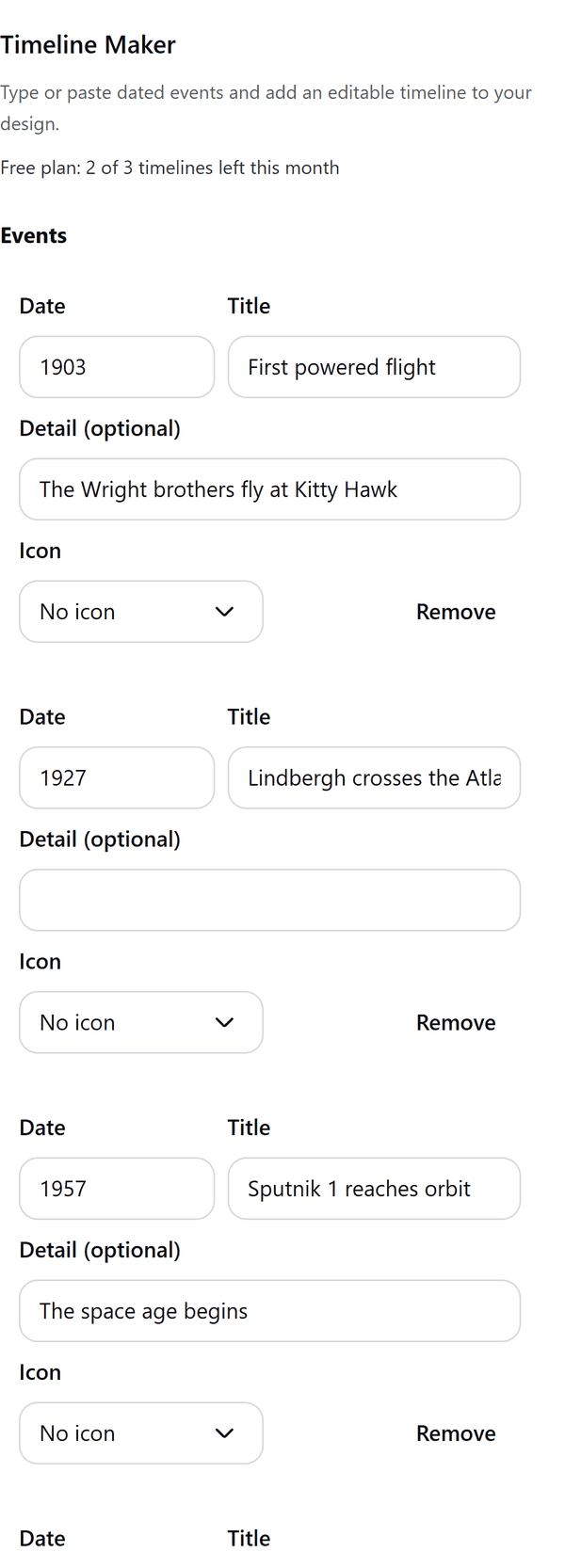
- Under Events type a Date and a Title for each event, or press Paste events and paste one event per line. Press Try an example to see how it works.
- Choose a Timeline layout, a Date format and a Timeline style. Check the preview.
- Press Add timeline to design. The timeline is added to the page you are on.
Free and Pro
Plan limits reset each calendar month (UTC). Pro is billed through Polar.
| Free | Pro | |
|---|---|---|
| Timelines a month | 3 | Unlimited |
| Layouts | Horizontal and vertical | Also zig-zag, roadmap, circular and multi-row |
| Events | Up to 8 | Up to 60 |
| Styles | 3 | 12 |
| Spacing | Even | Even or real time, with era bands |
| BC and AD dates | No | Yes |
| Event icons | No | 16 icons |
| Paste from a spreadsheet or CSV | No | Yes |
| Price | $0 | $5 per month or $35 per year |
Manage your Pro licence
You get a licence key by email after you buy Pro. Paste it into the app and press Activate licence. To use the key on another Canva account, press Deactivate this licence first. To restore Pro after a reinstall or on a new device, activate the same key again. To cancel, use the link in your Polar receipt email. Full steps: buying, restoring and managing Pro.
FAQ
Can I edit the text afterwards?
Yes. Each date and title is a text element in your design, so you can change the words, font and colour in Canva.
How do I paste many events?
Press Paste events and put one event on each line, for example 1969 - Moon landing. Pasting from a spreadsheet or CSV with several columns is a Pro option.
What if there are too many events for one page?
On Free you can add up to 8. On Pro up to 60, and a timeline that does not fit one page continues on further pages.
Is this a Gantt chart?
No. It shows dated events on a line. It has no task bars or dependencies.
Which dates can I use?
Years, full dates and month and year. BC and AD years are a Pro option.
Does my timeline leave my computer?
No. It is made in your browser. Our server only counts your monthly timelines.
How do I get help?
Email [email protected] with the app name and a short description of what happened. Do not send your full licence key.
What data does this app keep?
See the Privacy Policy. In short: designs and images stay in your browser; our server keeps your Canva user and brand ids, monthly usage counts and your licence status.