Tear-Off Flyers
A flyer page with tear-off tabs and cut lines
What it does
- Adds a flyer page with a headline, details and a row of tabs, each with your contact text turned so it reads along the tab
- Draws dashed, dotted or solid cut lines between the tabs, as one picture under the text
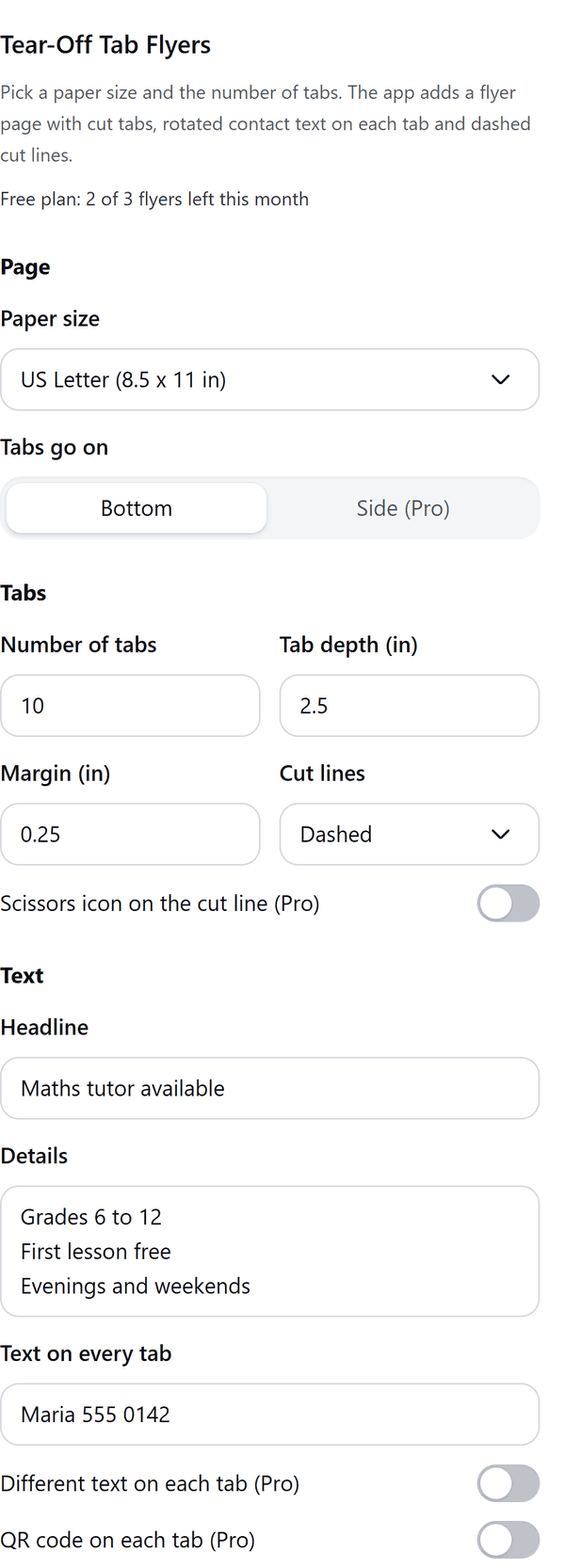
- Lets you set the paper size, the number of tabs, the tab depth and the margin, and shows a preview of the flyer
- Warns you when tabs are too narrow, too deep or too close to the page edge for a home printer, or when tab text is too long to fit
- Keeps the headline, details and tab text as text you can edit on the page
- Pro: side tabs, other tab counts, Half Letter and A5 paper, two flyers on one sheet, different text on each tab, a QR code on each tab and a scissors icon
How to use it
- Open a design and open Tear-Off Tab Flyers from the Apps tab.
- Under Page choose the Paper size. Under Tabs set the Number of tabs, the Tab depth and the Margin.
- Under Text type the Headline, the Details and the Text on every tab. Check the Preview.
- Press Add flyer page. Print one test sheet on plain paper and cut it before you print a stack.
Free and Pro
Plan limits reset each calendar month (UTC). Pro is billed through Polar.
| Free | Pro | |
|---|---|---|
| Flyers a month | 3 | Unlimited |
| Tabs go on | Bottom | Bottom or side |
| Number of tabs | 6 to 12 | 1 to 20 |
| Paper | Letter and A4 | Also Half Letter and A5 |
| Two flyers on one sheet | No | Yes |
| Different text on each tab | No | Yes |
| QR code on the tabs | No | Yes |
| Scissors icon on the cut line | No | Yes |
| Price | $0 | $5 per month or $35 per year |
Manage your Pro licence
You get a licence key by email after you buy Pro. Paste it into the app and press Activate licence. To use the key on another Canva account, press Deactivate this licence first. To restore Pro after a reinstall or on a new device, activate the same key again. To cancel, use the link in your Polar receipt email. Full steps: buying, restoring and managing Pro.
FAQ
Is there a standard tab size?
No. Tab sizes in the app are a guide, not a standard. Print one test sheet on plain paper and check that the tabs tear off cleanly.
How many tabs can I have?
Free flyers have 6 to 12 bottom tabs. Pro flyers can have 1 to 20 tabs, on the bottom or the side.
How does the QR code work?
Pro only. Turn on QR code on each tab and enter a full link starting with https://. A QR code for that link is placed on each tab.
How do I put different text on each tab?
Pro only. Turn on Different text on each tab and write one line per tab. Write {n} for the tab number; a last line with {n} carries on to the rest of the tabs.
Can I edit the flyer afterwards?
Yes. Edit the headline, details and tab text right on the page. The cut lines are one picture under the text.
Does my flyer leave my computer?
No. The flyer is made in your browser. Our server only counts your monthly flyers.
How do I get help?
Email [email protected] with the app name and a short description of what happened. Do not send your full licence key.
What data does this app keep?
See the Privacy Policy. In short: designs and images stay in your browser; our server keeps your Canva user and brand ids, monthly usage counts and your licence status.