Stamp & Distress
One-colour stamps, letterpress prints and worn textures
What it does
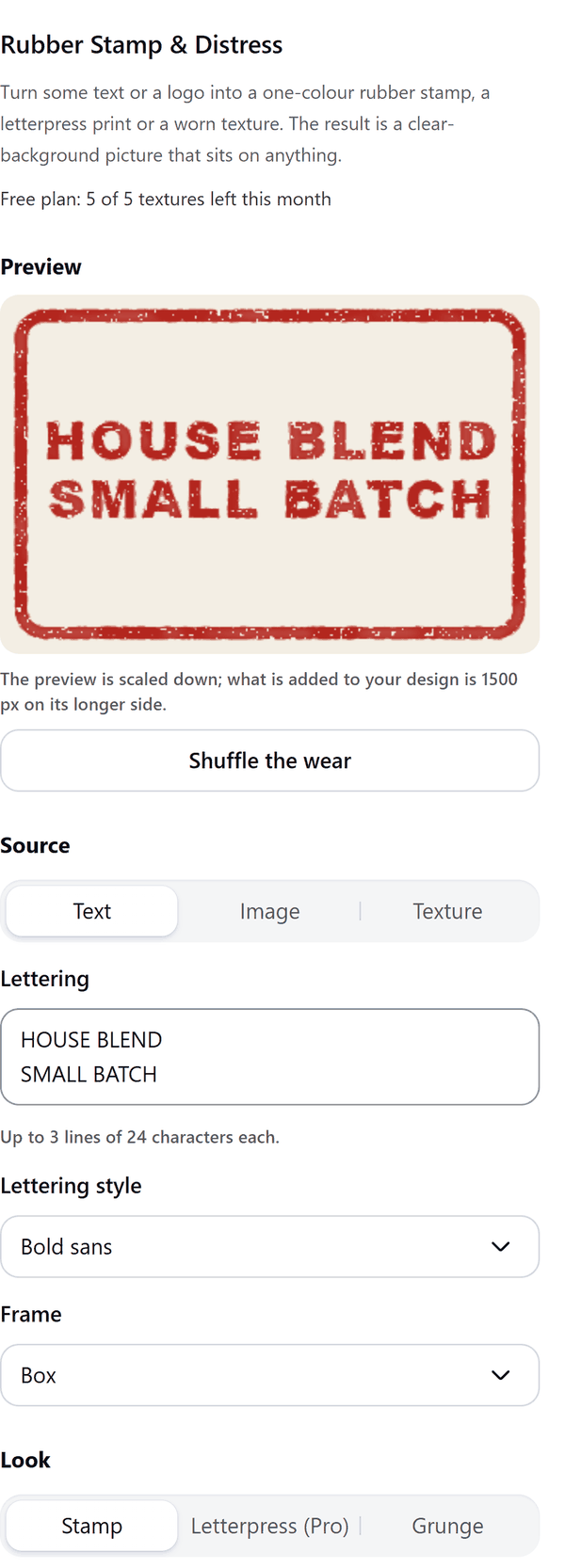
- Makes a one-colour picture from text you type (up to 3 lines of 24 characters), from an image you select in your design, or from a plain block of ink
- Gives it the Stamp look (ragged edges, ink that pools along the border), the Grunge look (scratches, blotches and worn patches cut out of the ink) or, in Pro, the Letterpress look (crisp edges and uneven pressure)
- Adds the result to your design as a picture on a clear background, so it sits on anything. The panel suggests the grunge look and a light ink as an overlay on a photo
- Reads a selected image by downloading it from Canva into your browser; the picture is made there. If the finished texture is over Canva's 10 MB upload limit the app shrinks it and tells you the new size
- Pro: Letterpress, more inks, your own colour, more frames, seamless tiling with a preview shown four times, lock the pattern and bigger output
How to use it
- Open a design and open Rubber Stamp & Distress from the Apps tab.
- Under Source choose Text, Image or Texture. For Text, type up to 3 lines. For Image, click an image in your design first.
- Choose the Look, set Intensity and Roughness, pick an Ink and look at the Preview. Press Shuffle the wear for different wear.
- Press the Add to design button. The stamp or texture is added to your design.
Free and Pro
Plan limits reset each calendar month (UTC). Pro is billed through Polar.
| Free | Pro | |
|---|---|---|
| Textures a month | 5 | Unlimited |
| Looks | Stamp and Grunge | Also Letterpress |
| Inks | Black, Stamp red, Stamp blue | Also 5 more inks and your own colour |
| Frames around text | No frame, Box | Also Double-line box, Circle, Double ring |
| Seamless tiling, lock the pattern | No | Yes |
| Output size (longer side) | Up to 1500 px | Up to 4096 px |
| Text, image and plain ink block, Intensity, Roughness | Yes | Yes |
| Price | $0 | $5 per month or $35 per year |
Manage your Pro licence
You get a licence key by email after you buy Pro. Paste it into the app and press Activate licence. To use the key on another Canva account, press Deactivate this licence first. To restore Pro after a reinstall or on a new device, activate the same key again. To cancel, use the link in your Polar receipt email. Full steps: buying, restoring and managing Pro.
FAQ
Is the picture on a clear background?
Yes. The result is a one-colour picture with a clear background, so you can put it on a colour, a photo or a design.
What are the frames for?
Decoration and branding. They are plain geometric borders: a box, a double-line box, a circle and a double ring.
What does seamless tiling do?
With Pro, the texture is made so it can repeat. The preview is shown repeated four times so you can check the join.
Why was my picture reduced in size?
Canva accepts uploads up to 10 MB. If the finished texture is bigger, the app shrinks it and the panel tells you the new size.
Can I look at Pro options on the free plan?
Yes. Pro options show in the preview. Adding a texture that uses them needs Pro.
Does my image leave my computer?
No. A selected image is downloaded from Canva into your browser, the texture is made there, and the finished picture goes into your design through Canva. Our server only counts your monthly textures.
How do I get help?
Email [email protected] with the app name and a short description of what happened. Do not send your full licence key.
What data does this app keep?
See the Privacy Policy. In short: designs and images stay in your browser; our server keeps your Canva user and brand ids, monthly usage counts and your licence status.