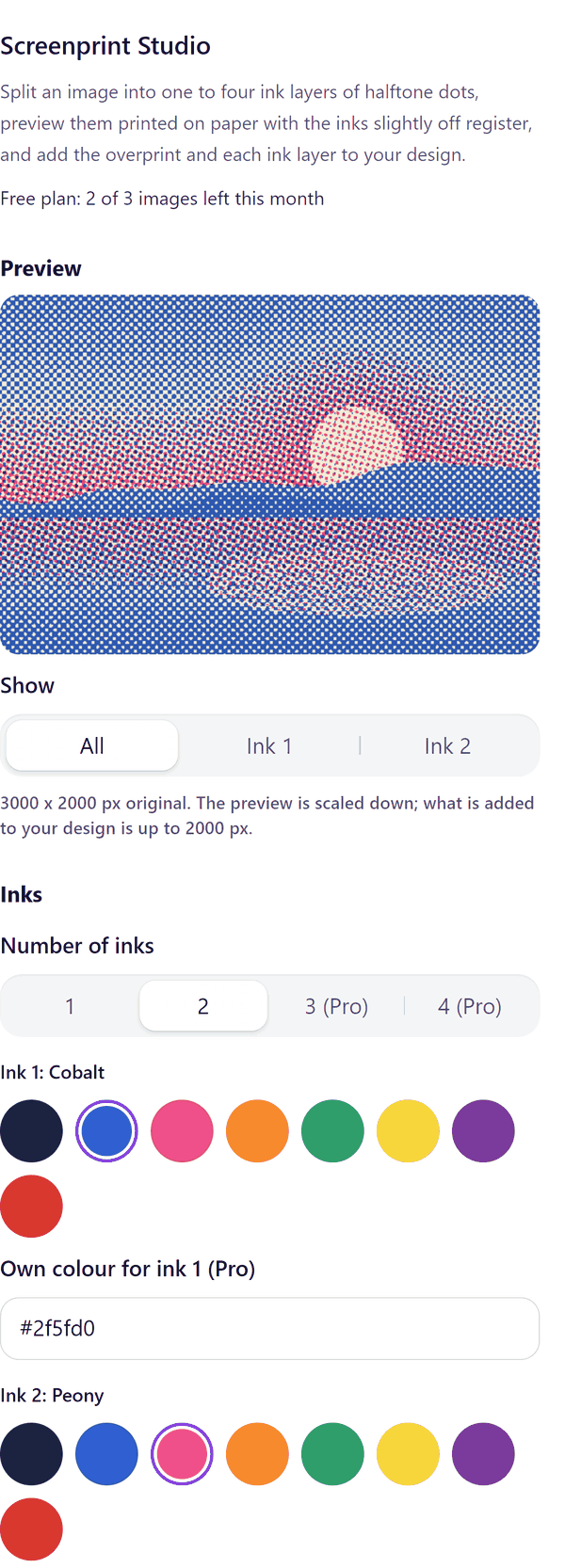
Screenprint Studio
Halftone ink layers and an overprint from one picture
What it does
- Splits the image you select into one to four ink layers of halftone dots
- Shows a preview of the layers printed together on the paper tone you choose; until you select an image the preview shows a sample so you can try the options
- Lets you set the number of inks, the ink colours, the dot shape, the dots across, the contrast and the tone
- Adds the overprint, all the inks printed together as a halftone, to your design
- Warns you when the dots are under 4 pixels apart, which can cause wavy moire patterns when printed or resized
- Pro: more inks, your own colours, other dot shapes, misregistration, grain and speckle, and each ink added as its own layer with registration marks
How to use it
- Open a design and click the image you want to separate. Open Screenprint Studio from the Apps tab.
- Under Inks choose the Number of inks and pick a colour for each ink. Under Paper choose a paper tone.
- Under Dots and tone choose the Dot shape, Dots across, Contrast and Tone. Check the Preview.
- Press Add overprint to design. The overprint is added to your design.
Free and Pro
Plan limits reset each calendar month (UTC). Pro is billed through Polar.
| Free | Pro | |
|---|---|---|
| Images a month | 3 | Unlimited |
| Inks | 1 or 2, from 8 ink colours | 3 or 4, and your own colours |
| Dot shape | Round | Round, square and line |
| Misregistration, grain and speckle | No | Yes |
| Each ink as its own layer, registration marks | No | Yes |
| Picture size | Up to 2000 px | Up to 4000 px |
| Overprint added to the design | Yes | Yes |
| Price | $0 | $6 per month or $39 per year |
Manage your Pro licence
You get a licence key by email after you buy Pro. Paste it into the app and press Activate licence. To use the key on another Canva account, press Deactivate this licence first. To restore Pro after a reinstall or on a new device, activate the same key again. To cancel, use the link in your Polar receipt email. Full steps: buying, restoring and managing Pro.
FAQ
What does the overprint show?
All the inks printed together as a halftone, as a screenprint of the picture. On Pro you can also add each ink as its own layer.
What is misregistration?
Pro only. It shifts an ink slightly off register, as happens in screenprinting, so the layers overlap with a small offset. You can see it in the preview before you add the picture.
What if the panel warns about moire?
The dots are under 4 pixels apart at that size, which can make wavy patterns when printed or resized. Use fewer dots across or a larger image.
Which colours can I use?
Free inks come from our own set of 8 ink colours. Pro lets you type your own colour code, such as #1b2340.
Is my picture uploaded to your server?
No. The picture is separated in your browser and added to your design through Canva. Our server only counts your monthly images.
What if the picture is too big?
The preview is scaled down, and what is added to your design is up to 2000 px on the long side, or 4000 px on Pro. Very large pictures are reduced to stay under Canva's 10 MB upload limit.
How do I get help?
Email [email protected] with the app name and a short description of what happened. Do not send your full licence key.
What data does this app keep?
See the Privacy Policy. In short: designs and images stay in your browser; our server keeps your Canva user and brand ids, monthly usage counts and your licence status.