Poster Tiler
A big picture split into sheets for a home printer
What it does
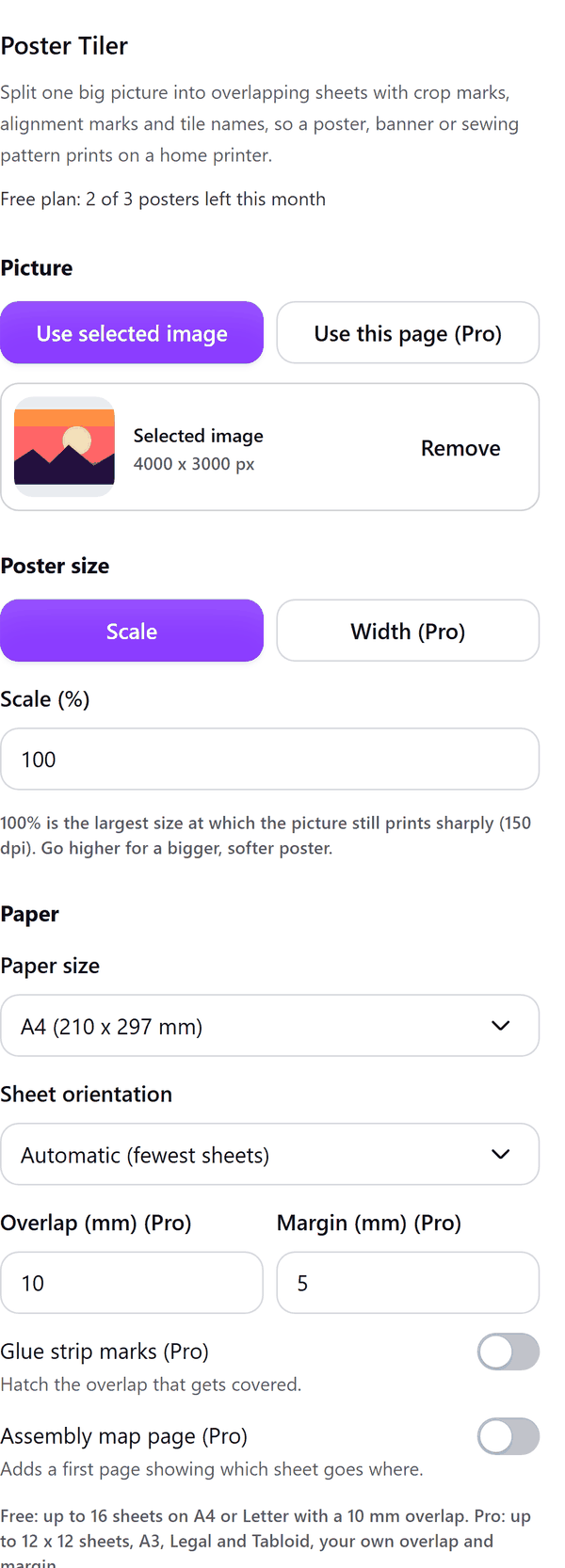
- Reads the image you select and splits it into overlapping sheets, one page per sheet, at the size you choose
- Names each sheet by row and column (A1, A2, B1 and so on) and adds crop marks and alignment marks
- Picks the paper orientation that needs the fewest sheets, or lets you choose
- Shows a preview of the grid over your picture, the number of sheets, the poster size and the print quality in dpi
- Warns when the picture would print soft at the size you chose
- Pro: bigger grids, more paper sizes, your own overlap and margin, size by width, glue strip marks and an assembly map page
How to use it
- Open a design, add the picture you want as a poster and click it so it is selected.
- Open Poster Tiler from the Apps tab and press Use selected image.
- Under Poster size set the Scale (%). Under Paper choose the paper size and orientation. Check the grid in the Preview.
- Press Add tile pages. One page per sheet is added to your design.
- Print every page at 100% (actual size), trim the white margin as the corner marks show, lay each sheet over its neighbour and glue the overlap.
Free and Pro
Plan limits reset each calendar month (UTC). Pro is billed through Polar.
| Free | Pro | |
|---|---|---|
| Posters a month | 3 | Unlimited |
| Sheets in one poster | Up to 16 | Up to 144 (12 x 12) |
| Paper | A4 and Letter | Also A3, Legal and Tabloid |
| Overlap and printer margin | 10 mm and 5 mm | Your own |
| Poster size by width in cm or inches | No | Yes |
| Glue strip marks | No | Yes |
| Assembly map page | No | Yes |
| Price | $0 | $5 per month or $35 per year |
Manage your Pro licence
You get a licence key by email after you buy Pro. Paste it into the app and press Activate licence. To use the key on another Canva account, press Deactivate this licence first. To restore Pro after a reinstall or on a new device, activate the same key again. To cancel, use the link in your Polar receipt email. Full steps: buying, restoring and managing Pro.
FAQ
What size is my poster?
100% is the largest size at which the picture still prints sharply (150 dpi). Go higher for a bigger, softer poster. The panel shows the poster size and the print quality.
How do I print the sheets?
Print every page at 100% (actual size) with no fit to page. Trim the margin as the corner marks show, then lay each sheet over its neighbour and glue the overlap.
Why does the panel ask me to select an image?
Poster Tiler splits one selected image. Select an image in your design and press Use selected image.
What if the picture is very large?
It is scaled down to 8000 pixels on its long side to fit in memory. The panel tells you when this happens.
Does my picture leave my computer?
No. The sheets are made in your browser. Our server only counts your monthly posters.
What does the glue strip mark do?
It hatches the part of a sheet that its neighbour covers, so you know where to put glue. It is a Pro option.
How do I get help?
Email [email protected] with the app name and a short description of what happened. Do not send your full licence key.
What data does this app keep?
See the Privacy Policy. In short: designs and images stay in your browser; our server keeps your Canva user and brand ids, monthly usage counts and your licence status.