Pixel Sort Glitch
Pixel sorting and glitch effects for a selected image
What it does
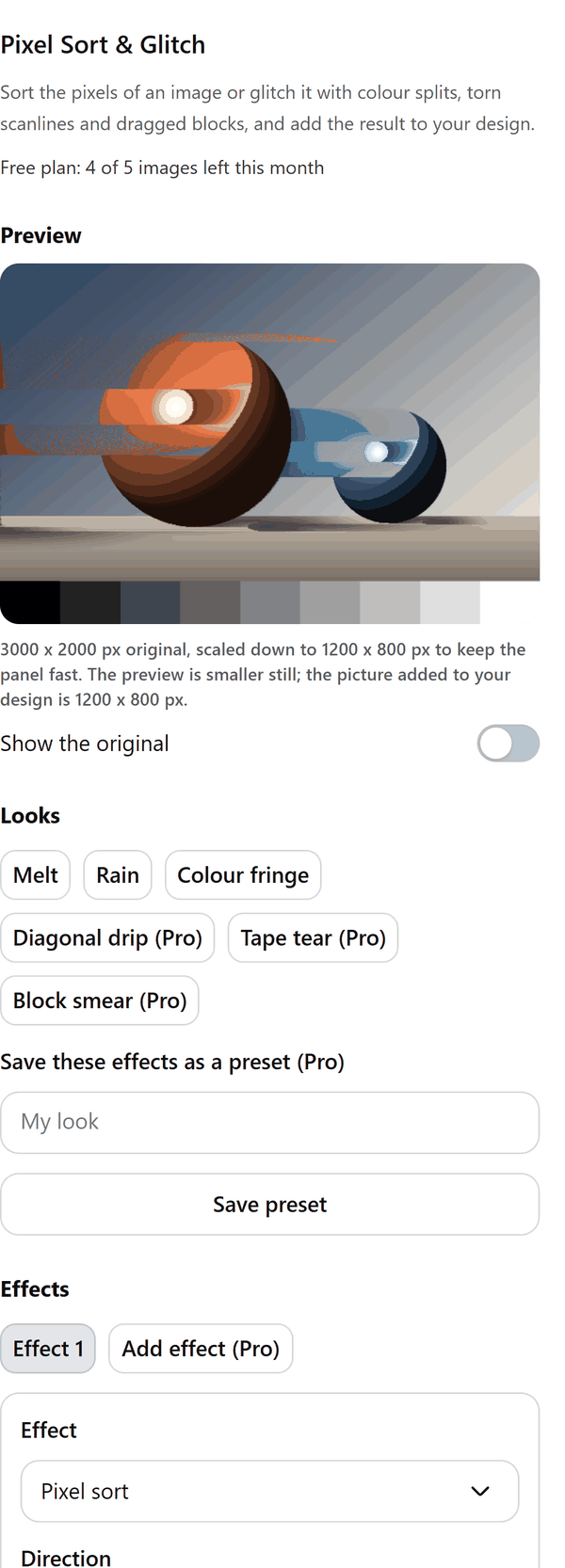
- Works on the image you select in your design; until you select one, the preview shows a sample picture so you can try the effects
- Sorts the pixels of each row or column by brightness, and shifts the red, green and blue channels apart (Pro adds sorting at an angle, by hue or saturation and a brightness mask)
- Pro: adds scanlines and block mosh, and stacks up to 4 effects one after another
- Shows a preview and a Show the original switch, and tells you the size of the picture that will be added
- Does all of the work in your browser, shows progress, and lets you cancel; only the finished image is added to your design
- Pro: saves your effects as a preset, kept on your device only
How to use it
- Open a design, click an image in it, and open Pixel Sort & Glitch from the Apps tab.
- Pick a look, or choose an effect and change its settings. Use Show the original to compare.
- Press the Add glitched image to design button. The new image is added to your design.
Free and Pro
Plan limits reset each calendar month (UTC). Pro is billed through Polar.
| Free | Pro | |
|---|---|---|
| Images a month | 5 | Unlimited |
| Effects | Pixel sort and channel shift | Also scanlines and block mosh |
| Effects at once | 1 | Up to 4 |
| Sort direction | Rows or columns | Also any angle |
| Which pixels and order | Brightness | Also hue, saturation and random |
| Presets | Ready looks (3 free) | All looks and your own saved presets |
| Output size | Up to 1600 px | Up to 4096 px |
| Price | $0 | $5 per month or $35 per year |
Manage your Pro licence
You get a licence key by email after you buy Pro. Paste it into the app and press Activate licence. To use the key on another Canva account, press Deactivate this licence first. To restore Pro after a reinstall or on a new device, activate the same key again. To cancel, use the link in your Polar receipt email. Full steps: buying, restoring and managing Pro.
FAQ
What is pixel sorting?
It sorts the pixels in each row or column of a picture by a quality such as brightness, which pulls the colours into streaks. Channel shift moves the red, green and blue parts of the picture apart.
Is my original image changed?
No. The glitched picture is added as a new image. Your original stays in the design.
How big is the picture that is added?
On the Free plan the long side is up to 1600 px, on Pro up to 4096 px. A bigger original is scaled down, and the panel shows the size before you add it.
Where are my presets kept?
With Pro you can save your effects as a preset. Presets are kept in your browser on your device and are not sent to our servers.
What counts as one image?
Each glitched image you add to your design counts as one of your monthly images.
Does my image leave my computer?
No. The image is read from Canva into your browser and processed there. Only the finished picture is added to your design through Canva. Our server only counts your monthly images.
How do I get help?
Email [email protected] with the app name and a short description of what happened. Do not send your full licence key.
What data does this app keep?
See the Privacy Policy. In short: designs and images stay in your browser; our server keeps your Canva user and brand ids, monthly usage counts and your licence status.