Imposition & Marks
Booklet order, several pages to a sheet, and crop marks
What it does
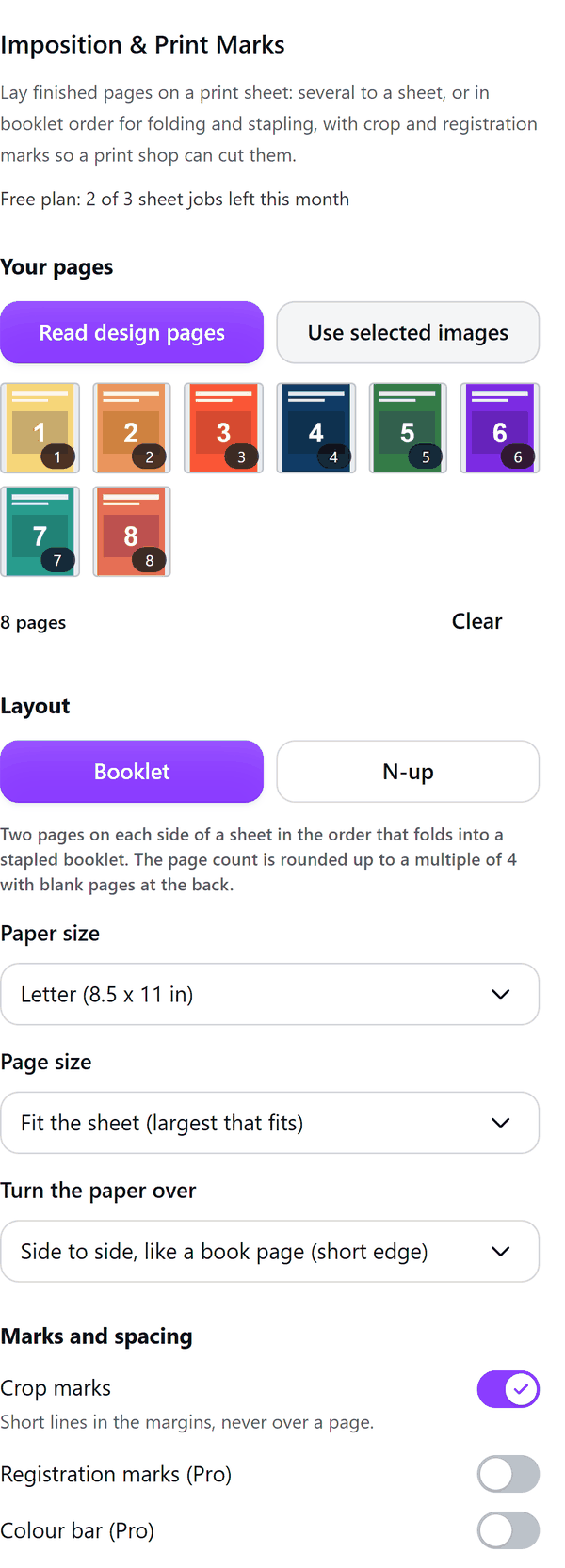
- Reads the finished pages of your design through Canva's export dialog (PNG, one file per page), or the page images you select in your design
- Lays the pages out as a booklet, with two pages on each side of a sheet in the order that folds into a stapled booklet and blank pages added at the back to reach a multiple of 4, or as several pages to a sheet in a grid for cutting apart
- Draws crop marks in the margins, never over a page, and adds sheet labels and an optional test sheet of numbered crosshairs as the first page
- Shows a preview of every sheet, front and back, with the number of sheets, printed sides and pages
- Adds each side of each sheet as a page in your design, with the pages placed as pictures
- Pro: more sheet sizes, bigger grids, longer booklets, registration marks, a colour bar, a fold line, cut and stack order and creep compensation
How to use it
- Open a design that holds your finished pages and open Imposition & Print Marks from the Apps tab.
- Under Your pages press Read design pages and pick the pages in Canva's export dialog as PNG, one file per page. Or select page images in your design and press Use selected images.
- Under Layout choose Booklet or N-up. Choose the Paper size, the Page size and the settings under Marks and spacing, then step through the Preview sheet by sheet.
- Press the Add button at the bottom. The sheets are added to your design. Print at 100% (actual size), print two-sided and flip on the edge the panel names.
Free and Pro
Plan limits reset each calendar month (UTC). Pro is billed through Polar.
| Free | Pro | |
|---|---|---|
| Sheet jobs a month | 3 | Unlimited |
| Sheet sizes | Letter and A4 | Also A3, Tabloid, 12 x 18 in and a custom size |
| Booklet length | Up to 8 pages | Up to 64 pages |
| Pages to a sheet (N-up) | Up to 2 x 2 | Bigger grids |
| Crop marks, sheet labels, test sheet | Yes | Yes |
| Registration marks, colour bar, fold line | No | Yes |
| Cut and stack order, creep, top-to-bottom flip | No | Yes |
| Price | $0 | $6 per month or $39 per year |
Manage your Pro licence
You get a licence key by email after you buy Pro. Paste it into the app and press Activate licence. To use the key on another Canva account, press Deactivate this licence first. To restore Pro after a reinstall or on a new device, activate the same key again. To cancel, use the link in your Polar receipt email. Full steps: buying, restoring and managing Pro.
FAQ
How many pages can a booklet have?
Free booklets have up to 8 pages; Pro booklets have up to 64. The page count is rounded up to a multiple of 4 with blank pages at the back.
How do I print the sheets?
Print every page at 100% (actual size), not fit to page, and print two-sided, flipping on the edge the panel shows. Fold the printed sheets in half and staple along the fold.
What is the test sheet?
With Test sheet first switched on, the first page is a sheet of numbered crosshairs. Print it and hold it to a light: the crosshairs and the dots on both sides should overlap. If they do not, choose the other flip.
Does it change my pages?
No. Your pages are placed on the sheet as pictures. A page that is not the shape of the page size is fitted inside it with white around it, and the panel tells you.
What if my design gets full?
Canva limits the pages in a design. If the last pages could not be added, the panel says so; use a new design for the rest.
Does my work leave my computer?
The pictures are made in your browser and added to your design through Canva. Our server only counts your monthly sheet jobs.
How do I get help?
Email [email protected] with the app name and a short description of what happened. Do not send your full licence key.
What data does this app keep?
See the Privacy Policy. In short: designs and images stay in your browser; our server keeps your Canva user and brand ids, monthly usage counts and your licence status.