Brochure Folds
Fold lines and named panels for a brochure sheet
What it does
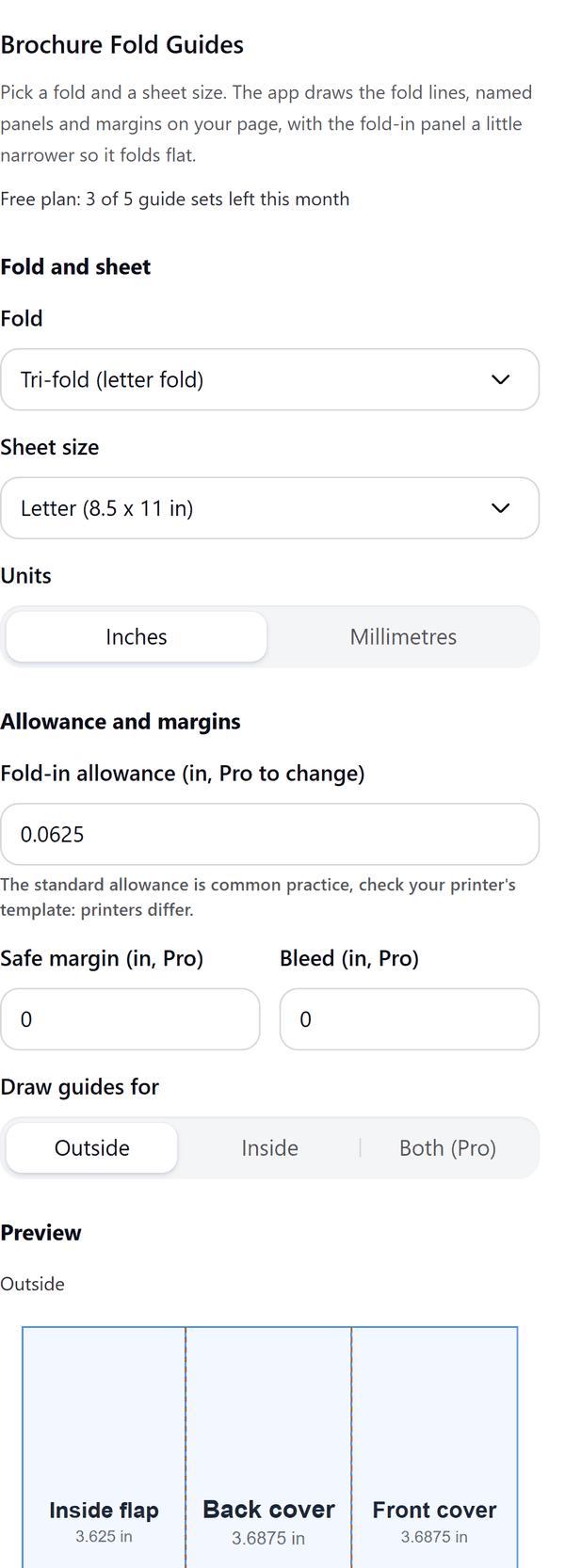
- Draws the fold lines, named panels (such as Front cover, Back cover and Inside 1) and their widths for the fold and sheet size you pick, with a preview of the outside and the inside
- Makes the fold-in panel a little narrower than the others by the fold-in allowance, so the brochure folds flat. The standard allowance is common practice; check your printer's template, because printers differ
- Adds the guides to your current page as shapes: pink dashed lines are folds, blue boxes are panels, green dashed boxes are safe margins and red dashed boxes are bleed. Remove them before you export for print
- Warns you if your page is smaller than the sheet, a different shape, or portrait when the sheet is landscape, and says how the guides will sit on it
- Has a Remove guides from this page button for the guides it drew. If none are found the panel says so
- Pro: more folds and sheets, your own allowance, safe margin and bleed boxes, and guides for both sides at once (the inside guides go on a new page after the outside page)
How to use it
- Open a design with a landscape page the size of your sheet and open Brochure Fold Guides from the Apps tab.
- Under Fold and sheet choose the Fold and the Sheet size, and the Units.
- Under Draw guides for choose Outside or Inside. Look at the Preview.
- Press the Add guides to this page button. Remove the guides before you export the design for print.
Free and Pro
Plan limits reset each calendar month (UTC). Pro is billed through Polar.
| Free | Pro | |
|---|---|---|
| Guide sets a month | 5 | Unlimited |
| Folds | Tri-fold, Z-fold | Also Gate-fold, Roll-fold, Booklet |
| Sheet sizes | Letter, A4 | Also Legal, Tabloid, A3, DL and custom |
| Fold-in allowance | The standard one | Your own |
| Safe margin and bleed boxes | No | Yes |
| Sides | Outside or inside | Also both at once |
| Inches or millimetres, remove guides | Yes | Yes |
| Price | $0 | $5 per month or $35 per year |
Manage your Pro licence
You get a licence key by email after you buy Pro. Paste it into the app and press Activate licence. To use the key on another Canva account, press Deactivate this licence first. To restore Pro after a reinstall or on a new device, activate the same key again. To cancel, use the link in your Polar receipt email. Full steps: buying, restoring and managing Pro.
FAQ
How are the panel widths worked out?
For a tri-fold, the two outer panels are a third of the sheet plus the allowance, and the fold-in panel is one allowance narrower, so all three add up to the sheet width. Z-fold panels are equal. Panel widths for gate and roll folds are common practice, check your printer's template.
What is the fold-in allowance?
How much narrower the fold-in panel is. The standard one is 1/16 in on US sheets and 2 mm on others. It is common practice, check your printer's template. Pro lets you change it.
What page should I use?
A landscape page the size of the sheet. The panel warns you if your page is smaller, portrait or a different size; if it is a different size the guides are centred on it.
Do the guides print?
They are shapes on your page. Remove them with the Remove guides from this page button before you export for print.
What counts as one guide set?
Guides drawn for one side, or for both sides at once in Pro.
Does my design leave my computer?
No. The guides are worked out in your browser and added to your page through Canva. Our server only counts your monthly guide sets.
How do I get help?
Email [email protected] with the app name and a short description of what happened. Do not send your full licence key.
What data does this app keep?
See the Privacy Policy. In short: designs and images stay in your browser; our server keeps your Canva user and brand ids, monthly usage counts and your licence status.