Dot-to-Dot Maker
A numbered dot-to-dot page and answer key
What it does
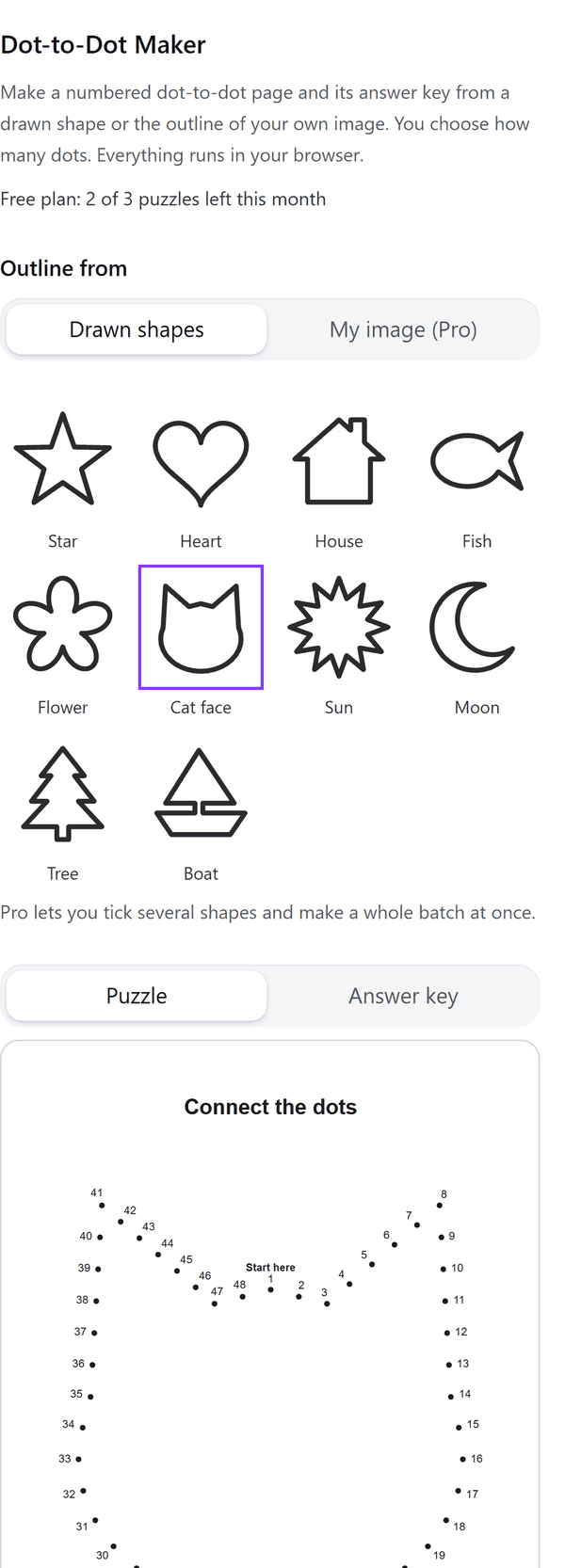
- Places the number of dots you choose around a drawn shape or around the outline of your own image, numbered from the side you pick, clockwise or anticlockwise
- Adds two pages for each puzzle: the numbered puzzle page and its answer key
- Puts an optional title line and a Start here note on the page; the numbers go in as text you can edit
- Warns you when the dots are squeezed too close, or when only some of the dots you asked for fit, and suggests fewer dots or a bigger page
- Pro: your own image (a dark shape on a plain light background works best), more dots, letters, larger numbers, several puzzles on a page and a batch of up to 10
How to use it
- Open a design and open Dot-to-Dot Maker from the Apps tab.
- Under Outline from choose Drawn shapes and pick a shape. Set the number of dots.
- Under Paper choose the page size and set the labels, start and direction. Look at the Puzzle and Answer key previews.
- Press the Add puzzle to design button.
Free and Pro
Plan limits reset each calendar month (UTC). Pro is billed through Polar.
| Free | Pro | |
|---|---|---|
| Puzzles a month | 3 | Unlimited |
| Outline from | 10 drawn shapes | Also your own image |
| Dots | 20 to 60 | Up to 300 |
| Labels | Numbers | Numbers or letters |
| Larger numbers for early readers | No | Yes |
| Puzzles on a page | 1 | 1, 2 or 4 |
| Batches | One at a time | Up to 10 shapes at once |
| Paper, title line, Start here note | Yes | Yes |
| Price | $0 | $5 per month or $35 per year |
Manage your Pro licence
You get a licence key by email after you buy Pro. Paste it into the app and press Activate licence. To use the key on another Canva account, press Deactivate this licence first. To restore Pro after a reinstall or on a new device, activate the same key again. To cancel, use the link in your Polar receipt email. Full steps: buying, restoring and managing Pro.
FAQ
What is one puzzle?
A puzzle is two pages: the numbered page and its answer key. Each one counts as one of your monthly puzzles.
How do I use my own image?
With Pro, choose My image, then click one picture on your page. One dark shape on a plain light background works best.
How many dots can I use?
The Free plan goes from 20 to 60 dots. Pro goes up to 300.
Can I make several puzzles at once?
With Pro. Tick up to 10 shapes to make a puzzle for each, or put two or four shapes on one page.
Can I edit the numbers after adding them?
Yes. The numbers go in as text you can edit.
Does my image leave my computer?
The picture is read from Canva into your browser and traced there. Only the finished pages are added to your design through Canva. Our server only counts your monthly puzzles.
How do I get help?
Email [email protected] with the app name and a short description of what happened. Do not send your full licence key.
What data does this app keep?
See the Privacy Policy. In short: designs and images stay in your browser; our server keeps your Canva user and brand ids, monthly usage counts and your licence status.