Card Deck Sheets
Card pages with bleed, then true size print sheets with cut marks
What it does
- Step 1: adds blank card pages at your card size with the bleed you choose and guides: red is the cut line, blue is the safe zone
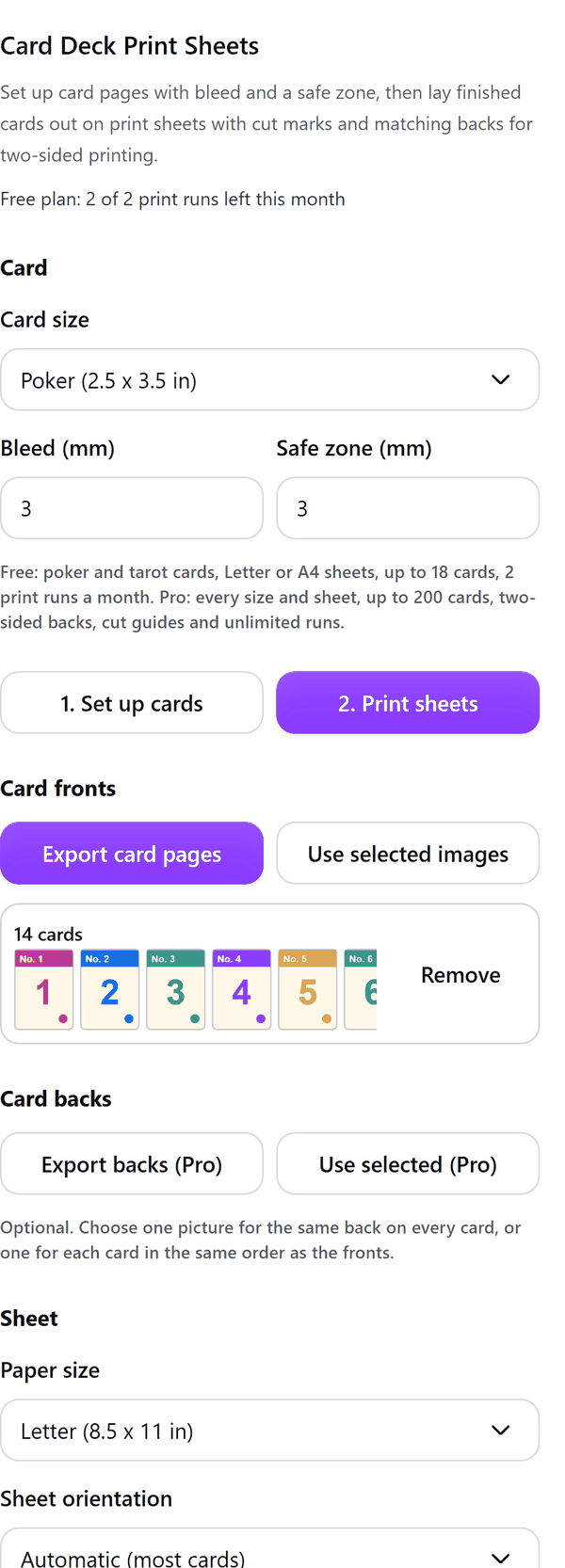
- Step 2: reads your finished cards, either exported as PNG pages or taken from the images you selected, and lays them out on sheets with cut marks in the margins
- Shows a preview of the first sheet, the cards per sheet, the number of sheets and the print quality, and warns about low resolution pictures
- Adds the sheets to your design as true size pages: print them at 100 percent, not fit to page
- Pro: bigger decks, more card and sheet sizes, one back for every card or a different back for each, alignment test pages and rounded-corner cut guides
How to use it
- Open a design and open Card Deck Sheets from the Apps tab. Under 1. Set up cards choose the Card size, Bleed, Safe zone and Number of cards, then press Add card pages.
- Design your cards on the pages. Press Remove guides from every page before you export.
- Open 2. Print sheets. Under Card fronts press Export card pages and pick the finished cards as PNG, or select the card images and press Use selected images.
- Choose the Paper size, margin and spacing, check the Preview, then press Add sheet pages.
- Print every page at 100 percent. Cut along the marks in the margins.
Free and Pro
Plan limits reset each calendar month (UTC). Pro is billed through Polar.
| Free | Pro | |
|---|---|---|
| Print runs a month | 2 | Unlimited |
| Card sizes | Poker and tarot | Also bridge, mini, trading card, square, jumbo and custom size |
| Cards in a run | Up to 18 | Up to 200 |
| Sheet sizes | Letter and A4 | Also A3, Tabloid and 12 x 18 in |
| Card pages with bleed and safe zone guides | Yes | Yes |
| Backs for two-sided printing | No | Yes |
| Rounded-corner cut guides | No | Yes |
| Price | $0 | $6 per month or $39 per year |
Manage your Pro licence
You get a licence key by email after you buy Pro. Paste it into the app and press Activate licence. To use the key on another Canva account, press Deactivate this licence first. To restore Pro after a reinstall or on a new device, activate the same key again. To cancel, use the link in your Polar receipt email. Full steps: buying, restoring and managing Pro.
FAQ
Why does the card page look bigger than a real card?
Pages are drawn at 300 pixels per inch so exported cards print sharp, which makes them look large on screen. The sheets in step 2 are true size.
How do I export the cards?
Export the card pages as PNG and do not choose a zip. If Canva sends a file that is not a single picture, the app asks you to export again as PNG.
How do I print the backs?
Backs are a Pro option. Choose one picture for the same back on every card, or one for each card in the same order as the fronts. Print the alignment test pages first and hold both sides to a light; if the dots do not overlap, change the flip edge.
What counts as a print run?
Each time you add a set of sheet pages counts as one print run. Setting up card pages does not use your allowance.
Does my design leave my computer?
No. The sheets are made in your browser. Our server only counts your monthly print runs.
What if my pictures are the wrong shape?
Pictures that are not the shape of the card are cropped in the middle, and the panel tells you how many.
How do I get help?
Email [email protected] with the app name and a short description of what happened. Do not send your full licence key.
What data does this app keep?
See the Privacy Policy. In short: designs and images stay in your browser; our server keeps your Canva user and brand ids, monthly usage counts and your licence status.