Auto Bleed
Extend an edge image into the bleed so it prints to the edge
What it does
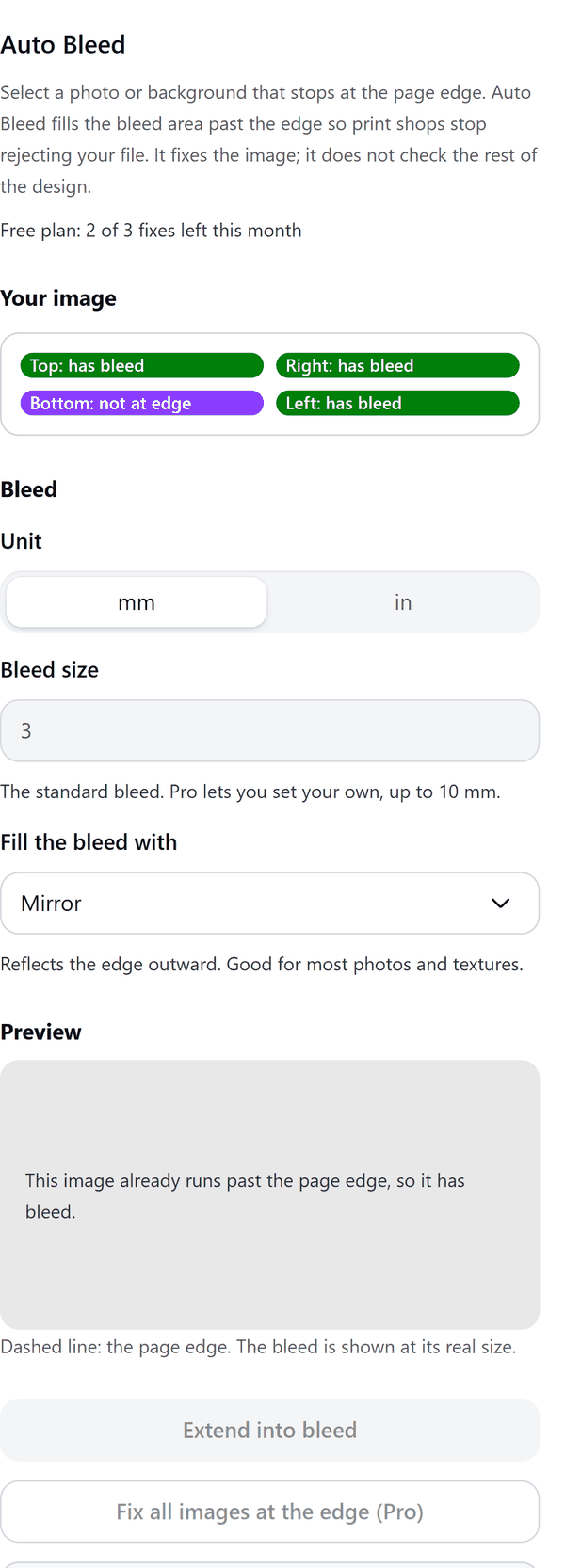
- Reads the image you select and shows which of its four edges touch the edge of the page
- Fills the bleed past those edges by mirroring the edge of the picture outward
- Replaces the image in your design with the extended one, sized to cover the page plus the bleed
- Shows a preview of an edge, drawn larger than real so you can see the bleed
- Leaves an edge alone when the image already runs past the page edge or does not reach it
- Pro: other fills, your own bleed, bigger images, every image on the page in one go and a crop marks page
How to use it
- Open a design with a photo or background that reaches the edge of the page and click the image so it is selected.
- Open Auto Bleed from the Apps tab. The panel lists which edges touch the page edge.
- Choose the Unit and the Bleed size (the standard bleed is chosen for you). Check the Preview.
- Press Extend into bleed. The image is extended past the page edge.
Free and Pro
Plan limits reset each calendar month (UTC). Pro is billed through Polar.
| Free | Pro | |
|---|---|---|
| Fixes a month | 3 | Unlimited |
| Fill | Mirror | Mirror, edge stretch, mirror and blur, solid colour |
| Bleed | 3 mm or 0.125 in | 0.5 to 10 mm |
| Image size read | Up to 2500 px | Up to 6000 px |
| Images fixed at once | One | Every image on the page |
| Crop marks page | No | Yes |
| Price | $0 | $5 per month or $35 per year |
Manage your Pro licence
You get a licence key by email after you buy Pro. Paste it into the app and press Activate licence. To use the key on another Canva account, press Deactivate this licence first. To restore Pro after a reinstall or on a new device, activate the same key again. To cancel, use the link in your Polar receipt email. Full steps: buying, restoring and managing Pro.
FAQ
How is this different from Print Preflight?
Print Preflight checks your design and reports problems. Auto Bleed fixes one thing: it fills the bleed on an image. Use Preflight to check the rest of the design.
Which images work?
Photos and backgrounds that stop at the page edge. Images inside a group cannot be read, so ungroup them first.
Which fill should I use?
Mirror suits most photos and textures. On Pro, edge stretch suits flat colours and gradients, mirror and blur hides repeats in busy photos and solid colour suits plain backgrounds.
What if Canva will not swap the image in place?
Then the extended image is added on top of the original and the panel tells you to delete the original underneath.
Does my image leave my computer?
No. The image is read and extended in your browser. Our server only counts your monthly fixes.
What if the image is very large?
It is scaled down to 2500 px on the long side on Free and 6000 px on Pro, and the panel tells you.
How do I get help?
Email [email protected] with the app name and a short description of what happened. Do not send your full licence key.
What data does this app keep?
See the Privacy Policy. In short: designs and images stay in your browser; our server keeps your Canva user and brand ids, monthly usage counts and your licence status.